Thursday, October 13, 2011

Personality Profile Part 1

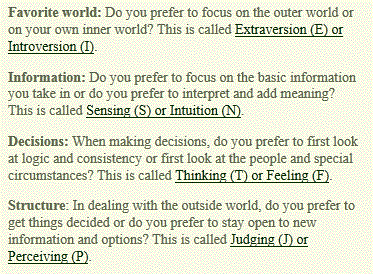
Today’s assignment was to read the basics about the Myers-Briggs Type Indicator (MBTI) personality inventory and an Overview of the Four Temperaments.   The MBTI contains the following four categories that the participant must determine their four letter code.  The MBTI assures all personality types and there is no best type.  Answering the four questions is difficult and requires self-assessment.  I find I worry about others and what I see.  I tend to focus on the information that is presented to me rather than interpreting on my own.  When making decision I think about the situation logically.  When dealing with others I find myself staying open to new options and information.  My four letter code for the MBTI is ESTP.


The following is the description of my temperament ESTP according to the Overview of the Four Temperaments.


I completely agree with the temperament overview.  I feel I am all of these things and have also been told I have many of these traits.  I was reluctant about this but it really hit the nail on the head for me. 

This assignments fuflills NETS T standard #1.  Determining a students temperment is a creative way for the student to think about what they do and how it affects them and others.

Tuesday, October 11, 2011

Audacity Part 2

I finally finished my Audacity assignment and I still have hair.  Once I finished editing the podcast in Audacity I referred back to the “How to…” for Audacity, I used previously, and watched the tutorial for converting my podcast to a MP3.  I then referred back to the LAMEencoder homepage and read the directions for locating the LAME file.  After I was educated on what I would be doing I went for gold and converted my podcast into a MP3 so I could publish it on Podbean.com. 
I had some difficulty with Podbean for some reason I could only get my files to upload partially.  I struggled for a while and then the technology fairies came and fixed it for me.  The moral of the story is stick with it and don’t give up.  J

So without further ado I present to you… “Music and MeThrough the Years”

This assignment follows the NETS T standards, specifically standards #1 and #2.  Using this type of technology is definably inspiring and creative.  For example I posted my podcast on Facebook for my friends to listen to and I have had several people ask me how to do it so they can create one too.  I have a feeling in might inspire the same in students.  This activity also is very digital age and could be adapted for the classroom environment. 

Monday, October 10, 2011

Audacity Part 1

The assignment I have been working on uses the Audacity program.  This program can be used to record and edit audio files.  The assignment is to create a 7-10 minute podcast narrative.  I have decided to create my podcast as a brief narrative about some songs that have inspired me.  To create my podcast I wrote down the first few bands and or songs that came to mind.   I then found all the songs I wanted to include.  Some of the songs I already had in my ITunes but others I found on YouTube.  I used the Benderconverter program from a previous blog.  Finding the songs was the easy part! 
My next step was to jot down an outline of what I wanted to say and how I wanted to arrange the songs and audio clips.  I then learned how to use Audacity with this “How to…” for Audacity and by editing the songs and audio clips I wanted to use.  I feel the best way to learn a program is to use it so that is what I did.  In order to get my audio files into Audacity I used Benderconverter to convert the files to .WAV.  While editing, I did my best to keep my audio clips around 5 – 20 seconds.  This varied slightly with some clips because I wanted to clips to flow together.  I used the “Fade In” and “Fade Out” effects to make the clips sound like they belonged.  The sound of the different audio clips varied so I had to turn some up and some down.  I used the microphone built into my computer to record my voice for the podcast.  This worked but the sound was very quiet so all my voice clips had to be turned up in volume.

When I am finished with the minor edits to my podcast I will use the LAME encoder to convert the podcast into a MP3 and upload it onto Podbean and provide a link in my next blog post.  I will go more into depth about this in the next blog because I have not completed this part yet. 

The following is the outline I used to create my podcast.

Audacity Podcast – Music and Me Through the Years
  1. Intro
    1. Applause clip
    2. Introduction audio clip
  2. Music and Voice
    1. Segment 1
                                                               i.      Walk Right In – Dr. Hook
                                                             ii.      Memory Dr. Hook audio clip
                                                            iii.      Cover of the Rolling Stone – Dr. Hook
                                                           iv.      Sweetest of All – Dr. Hook
    1. Segment 2
                                                               i.      Reba McEntire audio clip
                                                             ii.      It’s Your Call – Reba McEntire
                                                            iii.      Reba McEntire talent show audio clip
                                                           iv.      Take It Back – Reba McEntire
    1. Segment 3
                                                               i.      Love song audio clip
                                                             ii.      Crazy – K-Ci & JoJo
                                                            iii.      All My Life – K-Ci & JoJo
    1. Segment 4
                                                               i.      Blessid Union of Souls audio clip
                                                             ii.      She Likes Me for Me – Blessid Union of Souls
                                                            iii.      What it’s Like – Blessid Union of Souls
    1. Segment 5
                                                               i.      Finding myself audio clip
                                                             ii.      I’m Just a Girl – No Doubt
                                                            iii.      Don’t Speak – No Doubt
                                                           iv.      Spiderwebs – No Doubt
    1. Segment 6
                                                               i.      Angry Chick Music audio clip
                                                             ii.      Bring Me – Evanescence
                                                            iii.      My Immortal – Evanescence
                                                           iv.      Going Under – Evanescence
    1. Segment 7
                                                               i.      Martina McBride  audio clip
                                                             ii.      This One’s for the Girls – Martina McBride
    1. Segment 7
                                                               i.      Erika Jo audio clip
                                                             ii.      I Break Things – Erika Jo
    1. Segment 8
                                                               i.      Kelly Clarkson audio clip
                                                             ii.      A Moment Like This – Kelly Clarkson
                                                            iii.      Breakaway – Kelly Clarkson
                                                           iv.      Hazel Eyes – Kelly Clarkson
                                                             v.      Since You’ve Been Gone – Kelly Clarkson
    1. Segment 9
                                                               i.      Nickelback audio clip
                                                             ii.      Photograph – Nickelback
                                                            iii.      Far Away – Nickelback
    1. Segment 10
                                                               i.      Final audio clip
                                                             ii.      Lazy Song – Bruno Mars
  1. Ending
    1. Applause clip


This assignment follows all of the NETS T standards.  Making a podcast requires thought and creativity (standard 1) while requiring the student to be responsible (standard 4) for the audio clips they include.  A podcast is absolutely digital-age (standards 2 and 3). 
Thursday, September 29, 2011

Voice Thread

Today’s assignment was to learn about Voice Thread a tool that can be used for online meetings.  This tool has a lot of options from sharing imagines or videos to embedding links or exporting to a flash drive.   An online class such as this would greatly benefit from this program because the interaction is saved online.  There is no required software and the account is free.
Here is a video about Voice Threads.
Here are some ideas to display the usefulness of Voice Threads.

The second part of the assignment was to watch two videos.
1. Ken Robinson says schools kill creativity
2. Ken Robinson: Changing education paradigms

This Voice Thread was created for class collaboration about the videos.  I really enjoy the videos and was inspired by them.  I put links to both videos on My Diigo Library so I can share them with my friends and watch them if I find myself needing inspiration. 


This assignment follows NETS T standard 2 because it utilizes new technology and would allow the students to respond in their own ways.  The lesson could be customized to fit any subject and is a different way of interacting with the students making learning fun. 

Friday, September 16, 2011

Benderconverter.com

I enjoyed today’s assignment and I know it will be very useful for teaching and fun.  The program I downloaded was Benderconverter.com (Bender RealPlayer) which is a free video downloader and MP3 converter.  This program is useful because it allows the user to download a video from the internet for example a YouTube video.  To download a video first open RealPlayer and search for the YouTube video it the “Search for Video” bar located on the top right corner of the screen.  Once you have found your video select it and as it is playing move your curser over the video and click the “Download this Video” box that appears.  The video will automatically be downloaded into RealPlayer.  To locate the video go to the RealPlayer “Library” and look under the “Videos” tab.  The video can now be converted to another file extension such as .mp3 or .wmv using RealPlayer.  This is done by right clicking once on your video in RealPlayer then clicking “Convert to…” on the left side of the screen.  You can select your new file extension in the RealPlayer Converter box that pops up then click “Start” to convert the file.  This file converting process is useful for inserting a video into a PowerPoint slideshow, which only accepts certain file formats such as .wmv, or playing the video without internet access. 

The second part of the assignment was to create a one slide Google Docs presentation including a YouTube video.  This is done by going to Google Docs, clicking the “Create new” tab on the left side of the screen then selecting “Presentation.”  The presentation will open in a new tab where it can be edited and created.  In order to insert a video click the “Insert” tab, “Video…,” find, and select your YouTube video and click “Select video.”  The video is automatically inserted but can be moved and resized.  When the presentation is finished and ready to be shared, save the video and click the down arrow beside the “Share” button on the top right corner of the screen.  Select “Publish/embed” and follow the directions to share your presentation.  My presentation contains a cute introduction to chemistry YouTube video by They Might be Giants.

This assignment follows NETS for Teachers standard three.  The use of YouTube videos in classroom assignments is modeling digital-age work and learning.  For example the use of the video I chose is educational and fun.  The students would enjoy the song and graphics while learning something new.

Tuesday, September 13, 2011

Jing Screencast

Today I used the Jing Program to create a screencast video.  Here is the link we were given so we could view a Jing Screencast video before creating our own. 

My Screencast teaches the users how to use the Wordle program to create a Word Cloud.  I first typed a document containing the required steps to complete the task because the video does not contain sound.  I placed this document on one side of the screen so the reader could follow the steps as they watch the video.  I used the Jing “capture” tool to select the screen area that I wanted to share on the video.  I then followed the steps in the document and demonstrated in the program. 

This program will be very useful technology in a classroom.  It will allow the students the ability to perform tasks on their own or in groups while reviewing the directions as much as needed.  This can work for in-class or homework assignments.  This assessment follows NETS T standard #2 because it incorporates technology into the classroom while keeping in mind the individual learning of each student. 

Tuesday, September 6, 2011

Jeopardy Labs

Today’s new program was Jeopardy Labs.  This program is very useful in a classroom setting because it allows the teacher to quickly type in the questions and answers instead of cutting out shapes and creating their own game.  This game is also virtual so it can be reset and reused as many times as needed.  This is a time saver for teachers and therefore is important. 

I created a Jeopardy board for a high school chemistry class.  The game can be played or edited.

This assignment fits with NETS T standards 1 and 2.